
Goal
In this tutorial, you will learn how to use the Breeze software to classify minerals using Shapefile segmentation.
The training data
The training data consists of one image. The spectral range is between 417.56-994.64nm.
Download and import tutorial image data
Start Breeze
Select Tutorial and choose Field Shapefile Classification in the drop-down menu. Click OK.
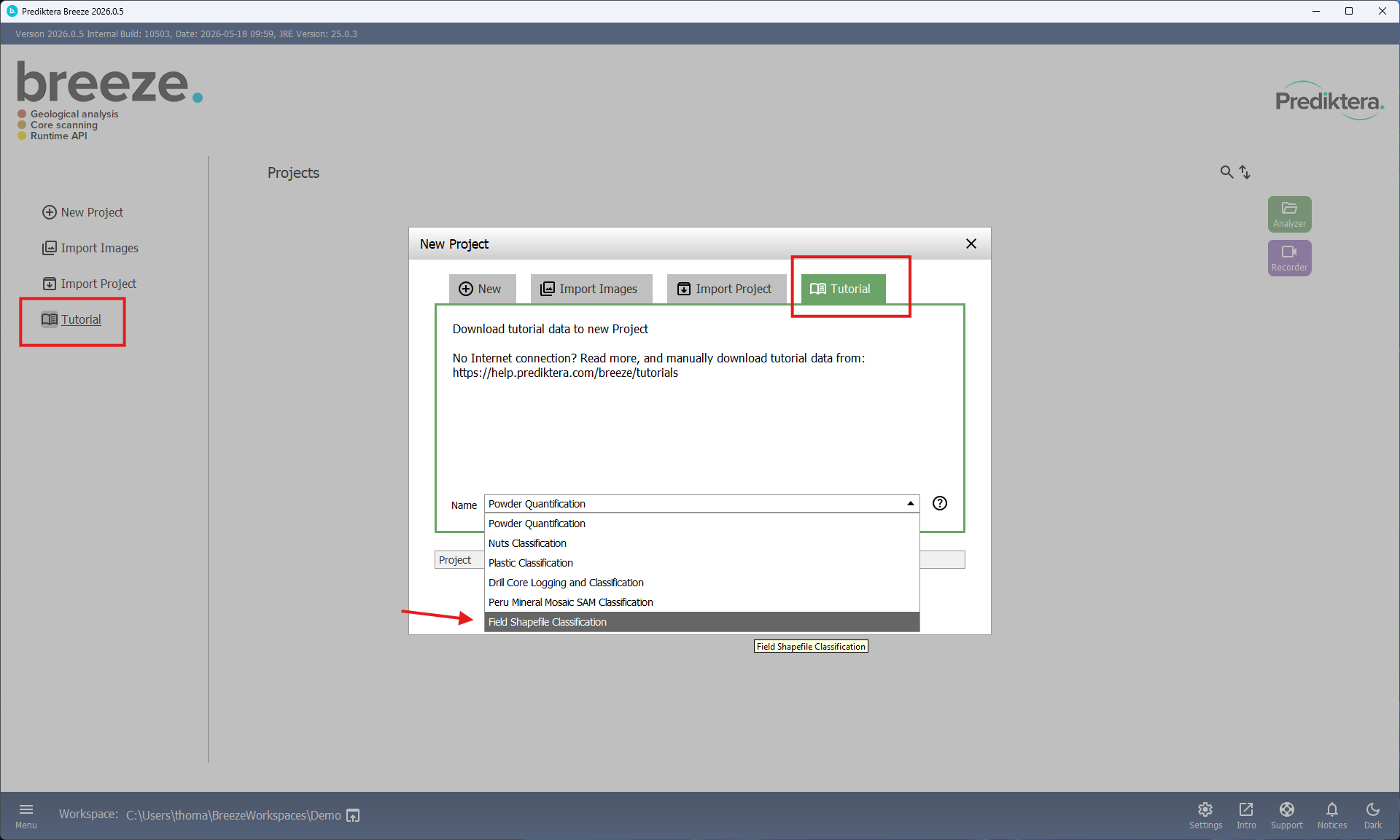
After the tutorial data jas downloaded Breeze will open the new tutorial project for you.
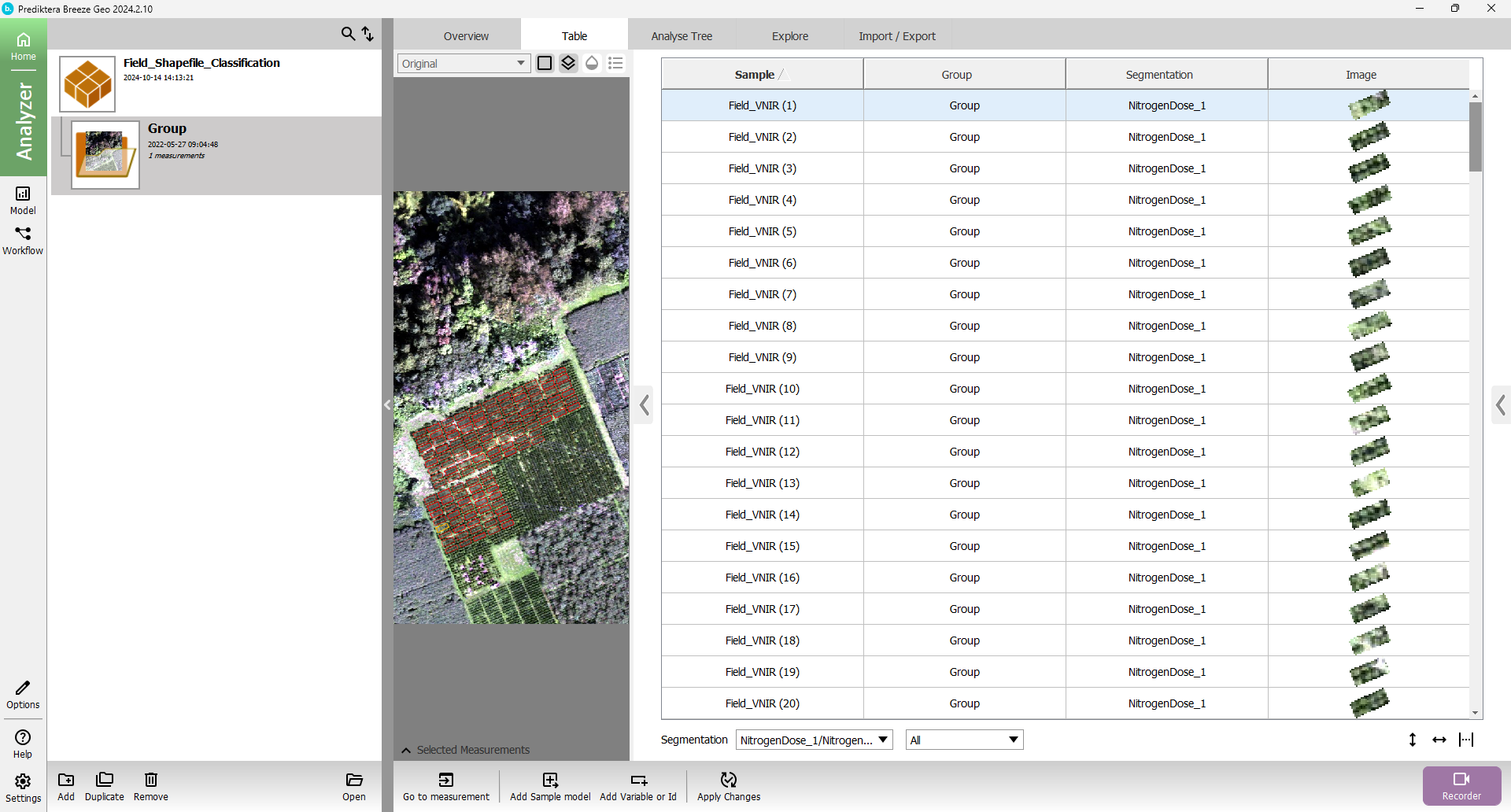
The project is named “Field_Shapefile_Classification”. The project image (called a measurement in Breeze) can be seen in the image viewer in the center of the window. The table to the left shows segments of the main image. When a row in the table is selected the corresponding segment in the image is highlighted and vice versa (selected segments in the image are highlighted in the table).
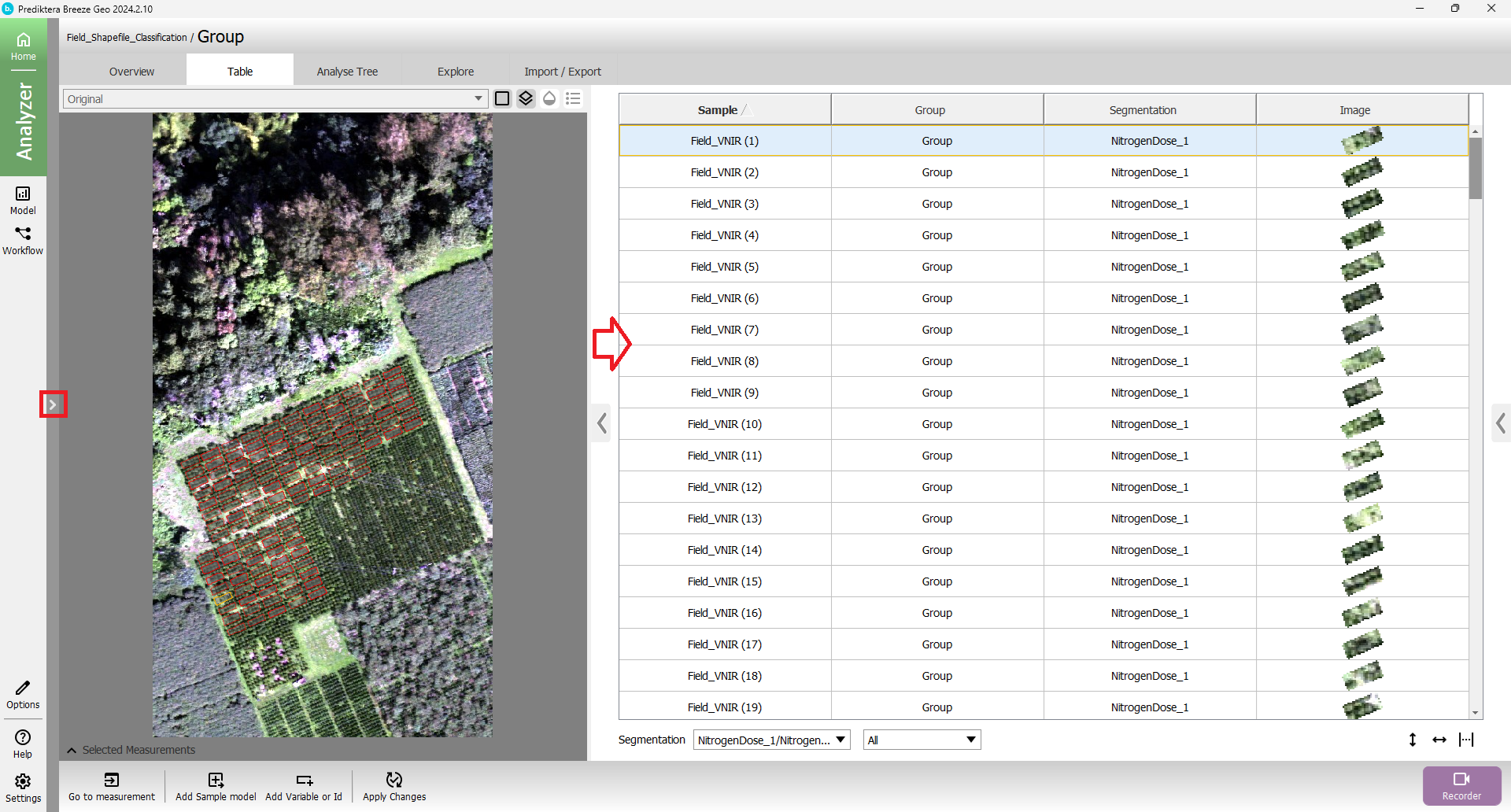
Expand the view by clicking the chevron button to the left of the image, and dragging the border between the image view and the table.
Click on Analyse Tree to see the current setup. In this tutorial it is already populated.
All of the nodes in the first level of the tree are Shape file segmentations. Click on one of the nodes to view the parameters set for the segmentation.
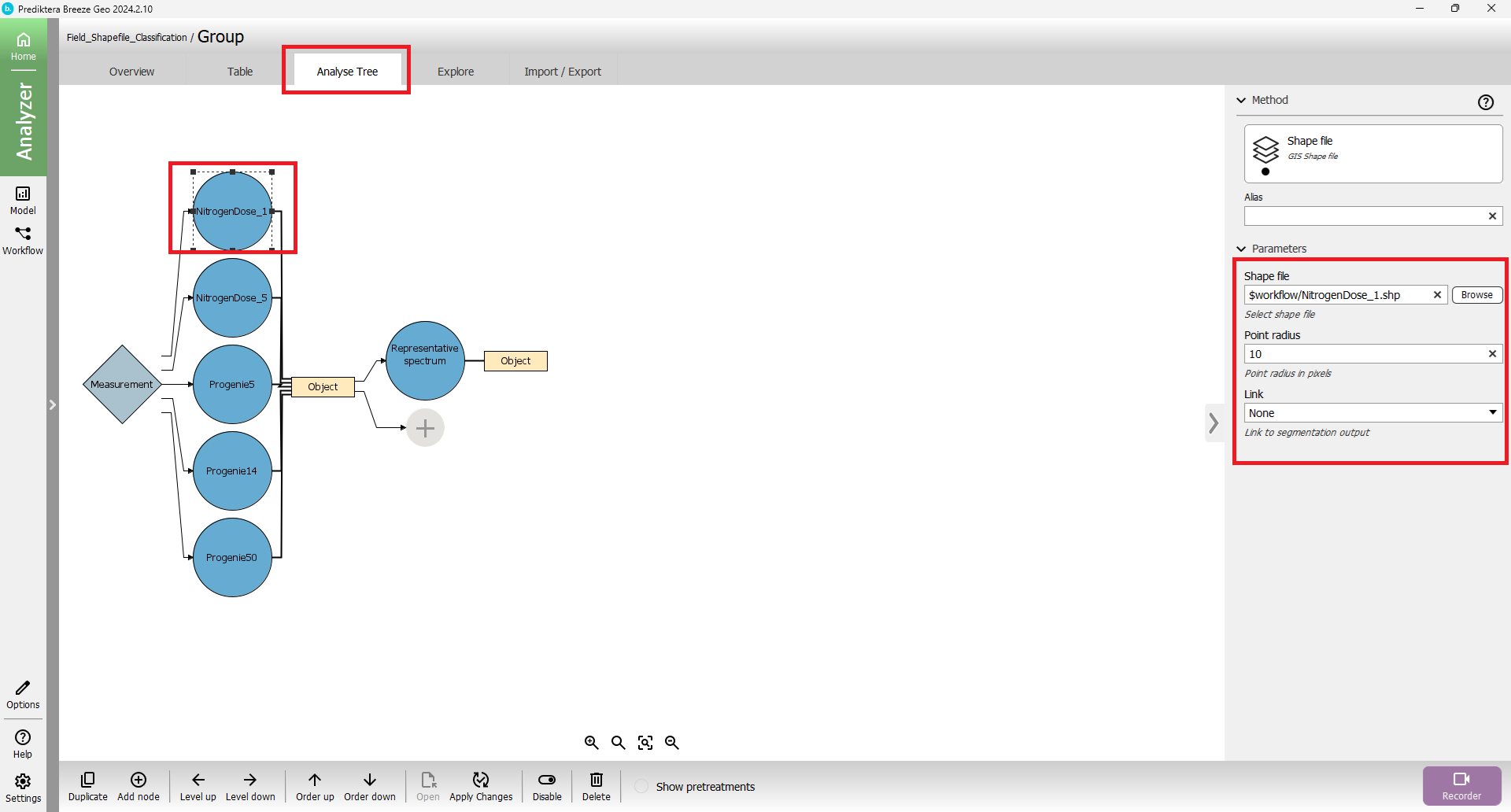
You can see that a shapefile is chosen for each segmentation node. Each shapefile defines some of the segmentations shown in the image.