

We’re excited to announce the latest release of Breeze, version 2026.1!
Full version number: 2026.1.0.10766
If you’re new to Breeze, refer to the Prediktera web site to learn about the benefits: Breeze Suite - Prediktera.
This version brings powerful new features and improvements for our users in the hyperspectral imaging and modeling community. Highlights are:
-
Significant improvements to Spectral viewer including addition of memory efficient PCA algorithm. Synchronized dual images allowing for pixel descriptor values to be compared side-by-side.
-
Significant reduction in memory usage in Recorder where the Analysis Tree is now applied after recording instead of real-time. Also, lower memory usage for cameras, like the HySpex VNIR-3000 cameras with both many pixels and wavelength bands. Both of these changes allow Breeze to be used on PCs with less memory than before.
-
Breeze Recorder UI improvements allow for resizing of camera views when recording with multiple cameras.
-
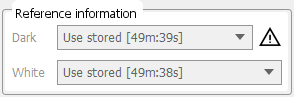
Improved reference quality checking now gives a warning when oversaturated pixels are detected in imported references. View reference data in Spectral Viewer from the References tab.
-
Usability improvements to RGB visualization for image thumbnails and image importing.
-
Reduced memory consumption when running workflows on large images as well as fixes to ensure workflows are always applied when apply changes is selected.
-
Improved Python scripting engine, which is several hundred times faster, allowing for real-time workflows.
-
Increased performance up to 10 times for the USGS PRISM MICA descriptor.
-
Fixes for improved accuracy when exporting depth registration to CSV.
Learn more about these and other changes in Breeze below, grouped by area functionality.
Spectral Viewer
Spectral Viewer enables quick viewing of very large images with hyperspectral data, because data is not loaded into memory until needed. Spectral Viewer is available as stand-alone software included in the free Breeze trial. Learn more in Spectral Viewer.
New features in this release:
-
Added a new Analyse Menu (stand-alone app only). Introduces advanced interactive tools for real-time data modeling and data quality checks. These tools are planned to be moved to Breeze in a future version.
-
Memory efficient PCA: Dynamically calculates a Principal Component Analysis (PCA) model, mapping the results into a pixel image alongside an interactive PC 1 vs PC 2 scatter plot. You can change components and adjust spectral pretreatments. This PCA is designed to work on very large images with reduced memory consumption.
-
Saturation/Intensity display: Instantly calculates and displays the percentage of saturated pixels within the current image view.
-
-
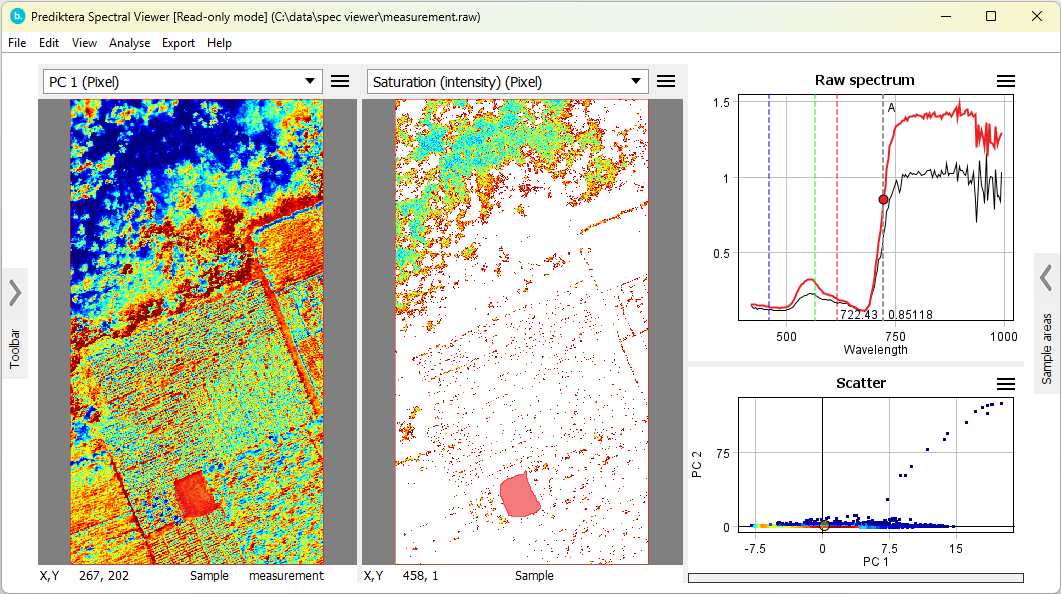
Added Synchronized Dual Image Display: You can now toggle a side-by-side view to compare descriptor pixel values directly against the original image. Any zooming or panning actions performed in one window automatically synchronize with the other to ensure both displays remain locked on the exact same area.
-
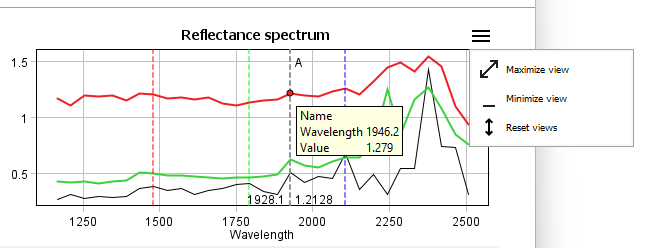
Support for minimizing or maximizing individual plots in Spectral Viewer.
-
Added support for importing USGS PRISM MICA
.specprspectrum library files. -
Quicker loading of data when images have large white references. Learn more at the end of Dark and White References.

Record - Breeze common features
This section is about the core functionality of Breeze for data acquisition and data management.
Data acquisition - Recorder
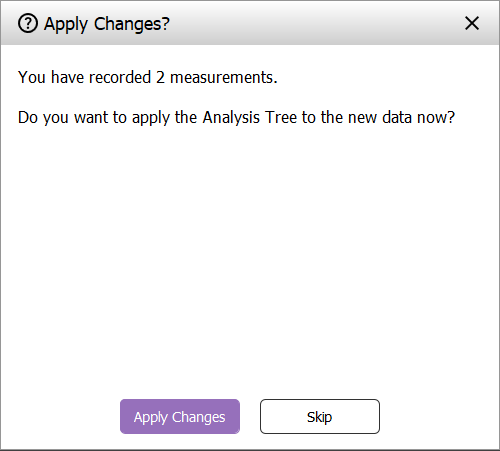
Record very large measurements in Breeze, regardless of the complexity of the Analysis Tree and with PCs with less system memory than before. This is possible because Breeze no longer applies the Analysis Tree in real-time when recording a fixed length measurement. Instead, you are prompted if you want to run the Analysis Tree when exiting Recorder. Learn more in Breeze Recorder including how to change a setting to use the old behavior or real-time analysis.
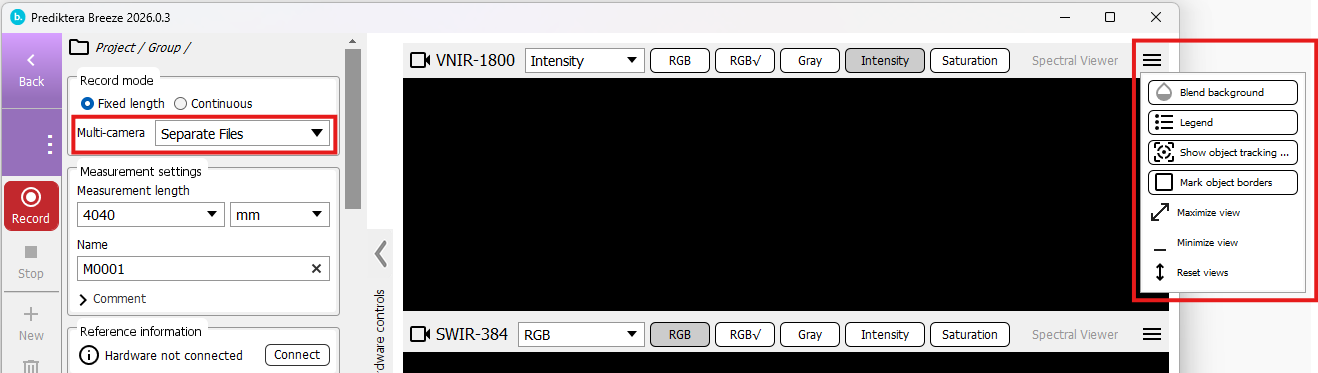
Change the sizes of camera previews in Recorder when using more than one camera, for example if you want to see a large preview for a specific camera but not see other cameras at all:
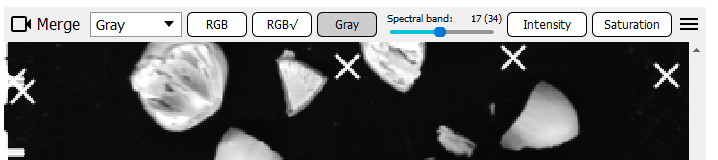
Recorder improvements when working with merge cameras: Recorder now shows that the camera uses merged data, and the Gray button now displays a slider with all spectral bands of the merged data, not just for the first camera.
Improvements to the text header files written by Breeze when recording data. The files now contain the acquisition time written as suggested in the ENVI documentation, the Description field now shows the Breeze Runtime version used to record the data, the comment from Recorder, and also additional fields like working distance to match HySpex Ground software headers.
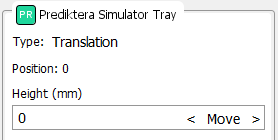
Sample movers now show the current position in the control panel in Recorder and Settings:
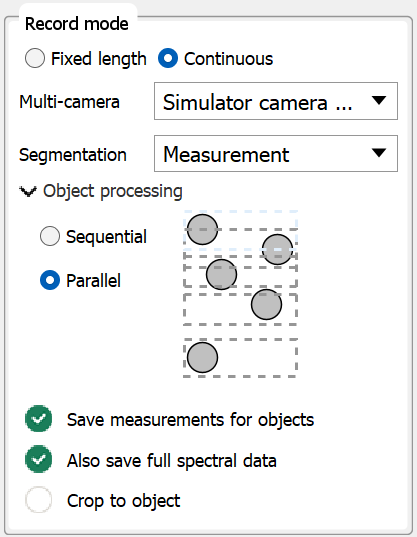
Cleanup of the user interface for Recorder in Continuous mode by moving the contents of the Segmentation and Settings panels into the record mode panel, along with disabling segmentation and object processing options if no Analysis Tree is present, as those options are not relevant in that case.
Fixed issues:
-
Fixed high memory usage and resulting out-of-memory on the PC for cameras with many pixels and wavelength bands, such as the HySpex VNIR-3000 N. The fix reduces memory usage in Settings > Focus, Integration Time and Test Scan and also when using Recorder. UT-3074.
-
Fixed an issue where the Measurement length field in Recorder was incorrectly disabled. UT-3126.
-
Fixed an issue where Recorder could not visualize a Band math descriptor if it was selected after the recording was complete.
-
Fixed the Recorder left visualization so that it is the opposite of right (UT-3127).
-
Recorder now displays images from snapshot images rotated following the visualization settings you have made in Project options(also available from Recorder’s Options button).
-
Fixed an issue that caused incorrect recorded data when Settings > References were configured to Use Stored white references and you imported a reference from file to the camera and then recorded with a camera that used an automatic shutter. This issue was introduced in Breeze 2025.1. UT-3038.
-
Fixed a Recorder issue for Continuous recording where identified objects were not displayed correctly in real-time. UT-3013.
-
Fixed Intensity and Saturation visualization in Recorder and in Settings > Test Scan, which were broken in the previous Breeze Preview.
Reference handling
References are key to good data quality and data analysis. See Dark and White References.
-
Breeze analyzes the quality of imported references, and displays a warning if there are saturated pixels, similar to when taking references with a camera.
-
When Importing references to the camera from a file, the Breeze log file will contain an entry explaining exactly what was imported.
-
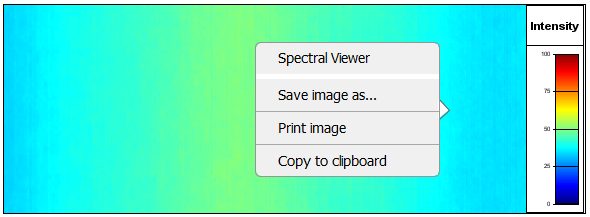
Open and inspect the full hyperspectral data of references in Spectral Viewer directly through the References tab by using the context menu.
-
Improved handling of Stored references for multiple cameras and when some cameras do not use references (such as RGB cameras). Breeze now alerts you to take a new reference only for a camera whose references have expired. Other cameras will use their stored references until their references expire.
-
A dark reference is now always taken before a white reference is taken in Settings > References.
-
Settings > References now hides the settings for stored references when the reference mode is set to Capture New or references are disabled.
-
Fixed an issue where Recorder asked for new references instead of re-using stored references as configured in settings, when switching between single cameras and the use of multiple cameras.
Import image files
-
Improved the user interface for importing images and updated the help. Importing images
-
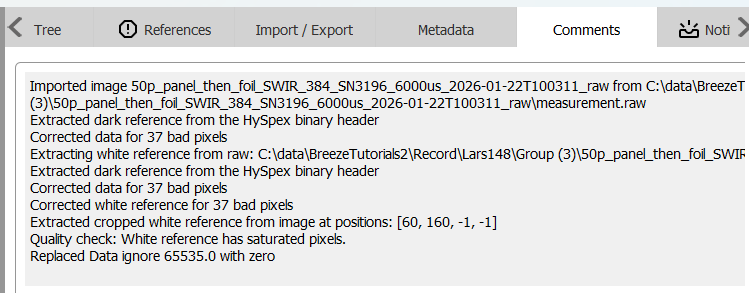
After importing images or editing references, a Breeze Comment is created for each measurement documenting the changes:
-
Fixed import of HySpex images so that field of view and pixel size are based on the
working_distancein the image metadata.
Working with images
Improved RGB thumbnails used as previews and in Spectral Viewer:
-
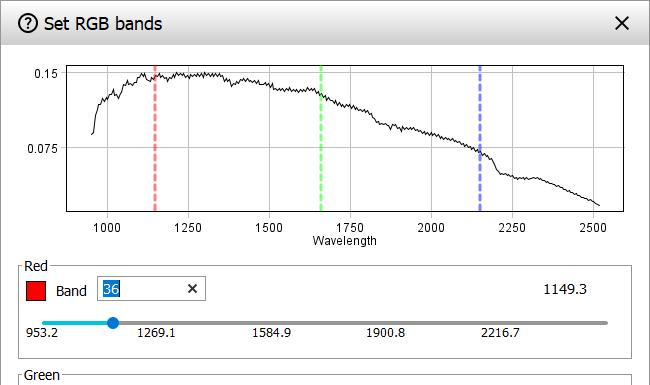
You can now easily recreate the RGB thumbnails to improve their quality by changing settings for Histogram normalization for RGB visualization of hyperspectral data and then using the Set RGB bands command to update the RGB visualization.
-
Fixed RGB thumbnail generation to use the configured Max signal of the Metadata tab for measurements. This can result in better thumbnails for imported data in formats such as radiance where Breeze might not know the true max signal and otherwise would create too dark thumbnails. Also ensures that the references are always used when generating thumbnails.
-
The Set RGB band dialog to specify the pseudo-RGB visualization in Breeze now has a spectrum plot to help visualize the bands.
-
Fixed so that the Metadata tab shows the updated RGB bands after changing them.
Other fixes:
-
Fixed x-axis showing numbers 1,2,3… instead of wavelength if white reference is missing but dark reference is present.
-
Fixed an issue that prevented imported images from showing up if there were errors in the Analysis Tree (UT-3075).
-
Fixed incorrect white reference on the measurement References tab, when importing reference extracted from an image and using a calibrated reference target at the same time. UT-3038.
-
Fixed incorrect visualization of dark references as black (bad data) instead of dark blue for small values. This was visible for dark references with very small values compared to the max signal of the camera. UT-3034.
Hardware
HySpex specifics:
-
Fixed incorrect bad pixel correction when importing .HySpex files or .raw files of HySpex origin, introduced in Breeze 2025.1. For cameras with max signal 65534 or 254, the wrong spectral bands when interpolating values as part of the bad pixel correction for signal values above half the max signal. Acquiring data directly in Breeze with Recorder was not affected by this issue. To correct affected data, it has to be re-imported to Breeze. UT-3060.
-
When configuring a HySpex camera in Settings > Camera, Breeze will now report inconsistences and errors in the camera settings files (.set files) that are used. If there are issues, the full details are found in the Runtime log.
-
Recorder now writes HySpex binary headers for dark references and white references when they are captured, so that recorded measurements can be populated with correct data.
-
Fixed issue where changing lens (mode) did not change the used reference files or take new references.
-
Fixed import of HySpex images so that field of view and pixel size are based on the working_distance in the image metadata.
-
Updated to PostProcessingSDK-1.0.0.0-win64.msi, HySpexLibrary-0.15.52.1-win64
Update IDS camera runtime. This fixes an issue where setting the frame rate was impossible.
Improved support for HAIP cameras. HAIP Solutions
Other changes
-
Added names to the various collapsible panels in Breeze to make them easier to discover.
-
This release uses updated third party libraries: Microsoft .NET 10, Microsoft Visual C++ Redistributable and others.
-
Fixed an issue where Breeze couldn’t handle a workspace path with Unicode (non-ASCII) characters. This was visible as empty references in the Runtime Client, and it was not possible to Set RGB bands in Breeze.
-
The command Export log files now includes the workspace size, and information about local disks of the PC in a new Disk Info.txt file included in the PC. Breeze log files and troubleshooting

Analyze
Improvements for data analysis in Breeze.
Opt-in setting to reduce memory consumption when applying a workflow to large images by saving object averages to disk. To apply the workflow to a measurement, Breeze traditionally has needed to keep the whole image in memory to be able to perform segmentations. This means that the amount of system memory of the PC places a limit on how large images you can analyze. We have added an option to save object averages to disk instead of keeping everything in memory. This reduces memory consumption and enables analysis of larger images. This option also enables a memory efficient PCA Descriptor. Learn more how to enable this per-project option in Workflow Analysis Tree and applying changes.
Fixed issues where Apply Changes failed to properly recompute data after changes were made to the Analysis Tree or measurements, including references. Breeze did not recognize that something had changed and re-used previous data for the measurement instead of recomputing. A workaround before this fix was to hold down Shift + Ctrl when clicking Apply Changes to make sure it worked. Workflow Analysis Tree and applying changes.
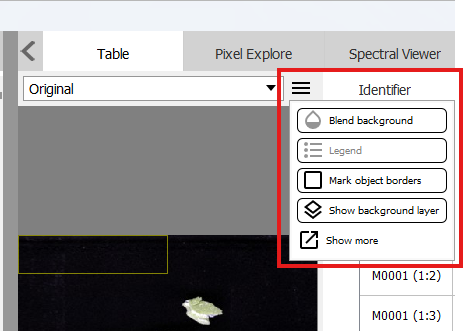
Added a menu button in the Table view for the visualization options, and also a Show more command that shows the full context menu otherwise only available in the right-click context menu:
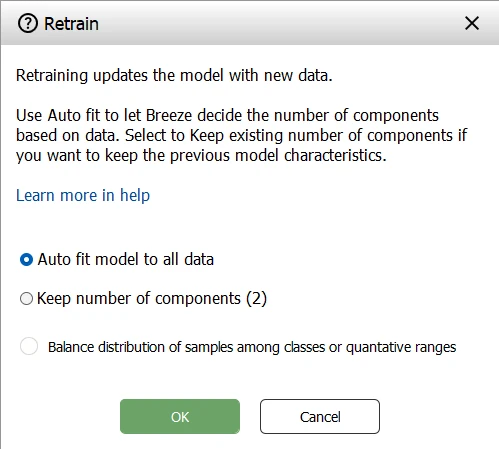
Retraining a model: moved the rebalance option from the context menu in Table to inside the Retrain dialog. Also improved the documentation for rebalancing in Modelling.
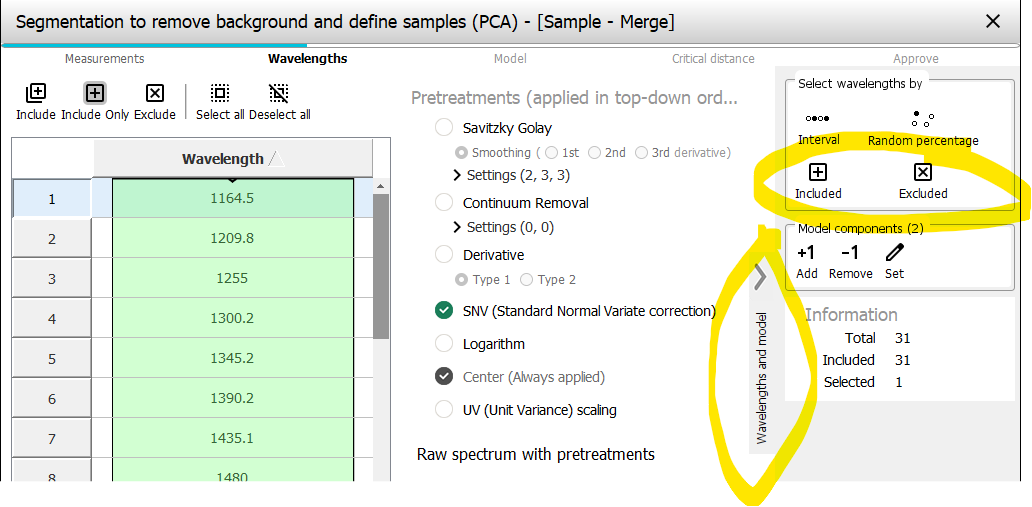
Modelling wizard: The icons for selection have been updated and the dialogs for selection have been improved.
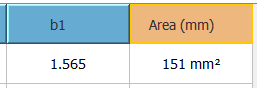
The Table now shows different colors for different types of descriptors to make it easier to differentiate the data. The same colors are used as in the Analysis Tree:
Spectral angle mapper (SAM) now has an option for Threshold per endmember to add a different threshold for acceptable angle for each individual endmember from the imported spectral library. Spectral angle mapper (descriptor)
Fixed compatibility issue importing exported Breeze data into the software ENVI. When exporting data in ENVI format, the text hdr file now always use the Wavelength field, except for classification images that use Band names. Exporting data.
Manual segmentation now creates an object topology. This allows for pixel class majority to function with manual segmentation.
Python Integration: Performance & Format Updates
We have completely overhauled the Python scripting engine to achieve true real-time processing speeds. By eliminating physical text files and streaming binary data directly into memory, the new architecture bypasses the operating system's disk entirely—resulting in execution speeds hundreds of times faster than the legacy method.
Changes to Your Workflow
-
No More File Parsing: You no longer need to import
sys, readsys.argv, or split strings by semicolons. Data is now injected directly into your script as a raw 1D list of numbers. -
The New Structure: Your script's logic must now be wrapped inside a
def perform(frame_data, num_bands):function (or justdef perform(frame_data):for global descriptors). -
Return, Don't Print: Instead of using
print()to send data back to Breeze, you simplyreturnyour final Python list directly from theperformfunction.
A Quick Comparison
Legacy Format (Slow Disk I/O)
import sys
with open(sys.argv[1], "r") as f:
    frames = f.read().splitlines()
# ... loop, split by ";", and print(result)
New Format (High-Speed Memory Stream)
def perform(frame_data, num_bands):
    # Process the 1D array directly in memory
    return result
There is also a optional setup method without parameters, which can be used to setup global variables accessible during the perfrom invocation.
Complete example
calibration_factor = 0.0

def setup():
    global calibration_factor

    calibration_factor = 1.25

def perform(frame_data):
    count = len(frame_data)

    if count == 0:
        return [0.0]

    tot_sum = sum(frame_data)
    adjusted_sum = tot_sum * calibration_factor

    return [adjusted_sum / count]

Optional module: Geological analysis
5-10 times quicker prediction of the USGS PRISM MICA descriptor which results in faster Apply Changes in Breeze and higher maximum speed of real-time workflows.
Added support for importing USGS PRISM MICA .specpr spectrum library files
Fixed an issue where real-time visualization of SAM and USGS displayed the wrong rule images. This only affected real-time visualization, not recorded measurements. UT-3022.

Optional module: Core scanning
Fixed an issue for Depth registration where data could be wrong when doing Export to CSV text file. This happened because Breeze didn’t save values with full precisions, which became apparent with true depths of large numbers such as 12345 and a small Depth registration interval, such as 0.031. Use Apply Changes in the fixed Breeze version to fix the data for measurements affected by this problem.
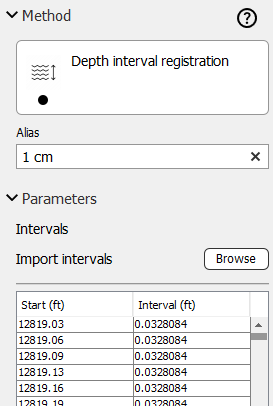
Fixed unnecessary slowness editing Depth interval registration (segmentation) in the Analysis Tree by using a table for the intervals:

Optional module: Runtime API - real-time integration with external systems
Improvements for merging data from two cameras in real-time:
-
Optional multi-camera merge sync mitigation. In real-time workflow scenarios when data is merged from two cameras, it is critical that data for both cameras are in sync. Otherwise, drift will occur resulting in poor quality merged images. We have added an optional mitigation for this issue, that can be turned on in a system to attempt to compensate drift by ensuring neither camera builds up buffer by simply dropping/ignoring frames if this happens. Learn how to turn on this feature, when it can be used, and how to evaluate results in the Runtime log files, in Using multiple cameras
-
Fixed Runtime workflows not identifying objects in real-time, including when run from Breeze Runtime Demo and Runtime Client.
-
Fixed and issue in Breeze Client that prevented it from visualizing data from merged cameras.
-
Fixed an issue where a Runtime workflow using a camera with merged data could not be restarted with
Start predictafter aStop predictcommand. A workaround used to be reloading the workflow XML and then starting predictions. UT-3111. -
Breeze Client now shows references for all cameras, when more than one camera is used.
Other fixes:
-
Fixed an issue where the Band math descriptor was visualized incorrectly outside segmented objects in the Runtime data stream used by Breeze Recorder, Runtime Client and third-party consumers. Not pixels outside objects are set to 0. UT-3101
-
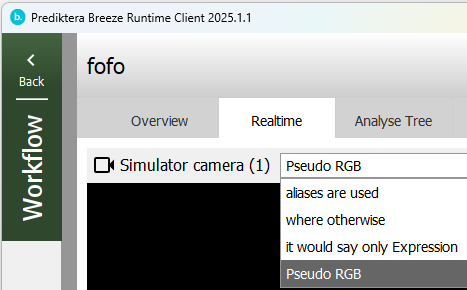
Aliases specified in the Analysis Tree nodes can now be used in the Runtime API to select descriptors. This example shows how the Runtime Client now uses aliases:
-
Runtime Client is now able to visualize the Combined RGB image descriptor in a workflow exported as Pixel Prediction Lines. The docs have been updated to explain how data is encoded.