The Prediktera Simulator camera is bundled with Breeze and is used to read data from a file on disk streams it to Breeze as if data is recorded from a real camera. This camera is used in the Breeze tutorials.
How it works
The Simulator camera acts like a line scan camera in Breeze. It will stream images, line by line, from files on disk. Breeze will use the Simulator camera as any other camera; it can be used to record data for processing in Breeze and run workflows in real time through an Analysis Tree.
As with any other camera you configure it by selecting in Workspace Settings and configuring as described in Hardware and settings guide.
The specific settings for this camera are described below.
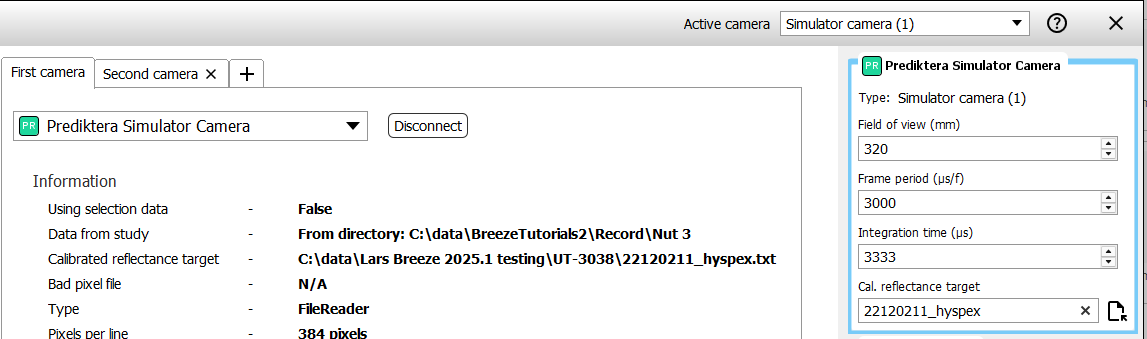
Once Breeze is connected to the camera, you can set the Field of view, Frame period/Frame rate and set/change the Calibrated reflectance target file from the hardware side panel:
Limitations
The integration time for the simulator camera is not used realistically and will not affect the exposure time in the recorded image, but it is displayed in the metadata for a measurement.
It is not be possible to set the integration time larger than the frame period.
Settings
The following are the available settings for the Prediktera Simulator Camera.
Two modes: single raw file or cycled measurement from a Breeze project group
The singe raw file mode is used to stream data from a single raw image file and its dark and white references, while the cycled measurements from a Breeze group in a project is used to stream all the measurement in that group.
Cycling measurement from a project does not work when using the Breeze Runtime from third party code or Breeze Client or Breeze Runtime Demo. Introduction to Breeze Runtime development
Cycle measurements from project group folder
This option is used if the measurements (images) should be cycled from a project group folder. When this option is selected all measurements within the specified folder will be streamed continuously.

This is good for demo purposes and is used in the Breeze tutorials.
Single Raw image with references
If a Raw File is selected and the folder contains darkref_measurement.raw and whiteref_measurement.raw those files will automatically be selected as Dark Reference File and White Reference File. When a Raw file has been chosen that file will be continuously looped.

Advanced settings
Mirror line
Under Advanced, the option to Mirror a line is available. This will simply mirror each streamed line.
Pseudo RGB bands
This option is available under the Advanced section. With this option it is possible to manually set what wavelengths/bands that should be used for Red, Green and Blue in the Pseudo RGB image. This is only used for visualization.
The input field can either be manually specified with the format red;green;blue (example 40;80;120) or by pressing Edit next to the input field and enter the separated values in the popup.
Calibrated reflectance target
For information, see Dark and White References | Using a calibrated reflectance target for gray references.
Baseline offset
Only used for testing x-ray camera.
Bad pixels file, Binary header
Used when simulating data from HySpex cameras.
Snapshot
If the camera should act like a snapshot camera that acquires a full image of all frames at once, like a regular consumer digital camera, and then streams the frames afterwards to Breeze.
Automatic shutter
Simulates an automatic shutter when selected. When unselected, prompts will be shown to manually cover the lens of the camera when, for example, taking a dark reference.