
We have released Breeze 2025.1.1 which contains improvements to handling of saturated pixels and fixes for various issues. Breeze will automatically prompt to update to this version. Learn details about the changes in v2025.1.1 (January 22, 2026).
The remainder of this page describes the changes in 2025.1.
We’re excited to announce the latest release of Breeze, version 2025.1!
Full version number: 2025.1.0.9607
If you’re new to Breeze, refer to the Prediktera web site to learn about the benefits: Breeze Suite - Prediktera.
Introduces the stand-alone Spectral Viewer and HySpex Recorder, with massive performance and memory improvements, enhanced reference handling for better data quality, extended multi-camera support, faster workflow recalculations, and advanced modeling updates.
This version brings powerful new features and improvements for our users in the hyperspectral imaging and modeling community.
Highlights in this release are
-
the Spectral Viewer for quick and memory efficient interaction with even the largest hyperspectral images.
-
🚀 Performance improvements impacting many areas of the Breeze experience, including quicker loading of projects on the main screen and quicker data analysis that require less PC RAM.
-
many little changes to improve usability
-
white reference quality checks and other improvements for management of references and conversion to spectral reflectance, absorbance or radiance that result in increased data quality and better data analysis
-
support for new cameras and updated hardware including IDS cameras, Qtechnology cameras, and a generic Prediktera Data Server that can be used to push data to Breeze from software.
-
improved support for more than one camera in settings, and in the Analysis Tree.
-
split large files in import using the Crop functionality to enable piecewise handling of really large images.
-
quicker Apply Changes for workflows by tracking changes to not recalculate data every time.
-
new and improved data analyses in the Analysis Tree and modelling and machine learning updates
-
export improvements with better control what to export and warnings to prevent overwriting files.
-
Runtime API improvements and fixes
Learn more about the changes below, grouped by area functionality.
New Breeze edition: Breeze HySpex Recorder
Breeze HySpex Recorder is a new edition of Breeze designed to record measurements from HySpex cameras and perform image editing and interactive analysis of the spectral data. It is offered free of charge to HySpex customers and includes a 30-day trial of the full Breeze product with all data analysis features. Learn more in Breeze HySpex Recorder and in the Breeze HySpex Recorder Guide.
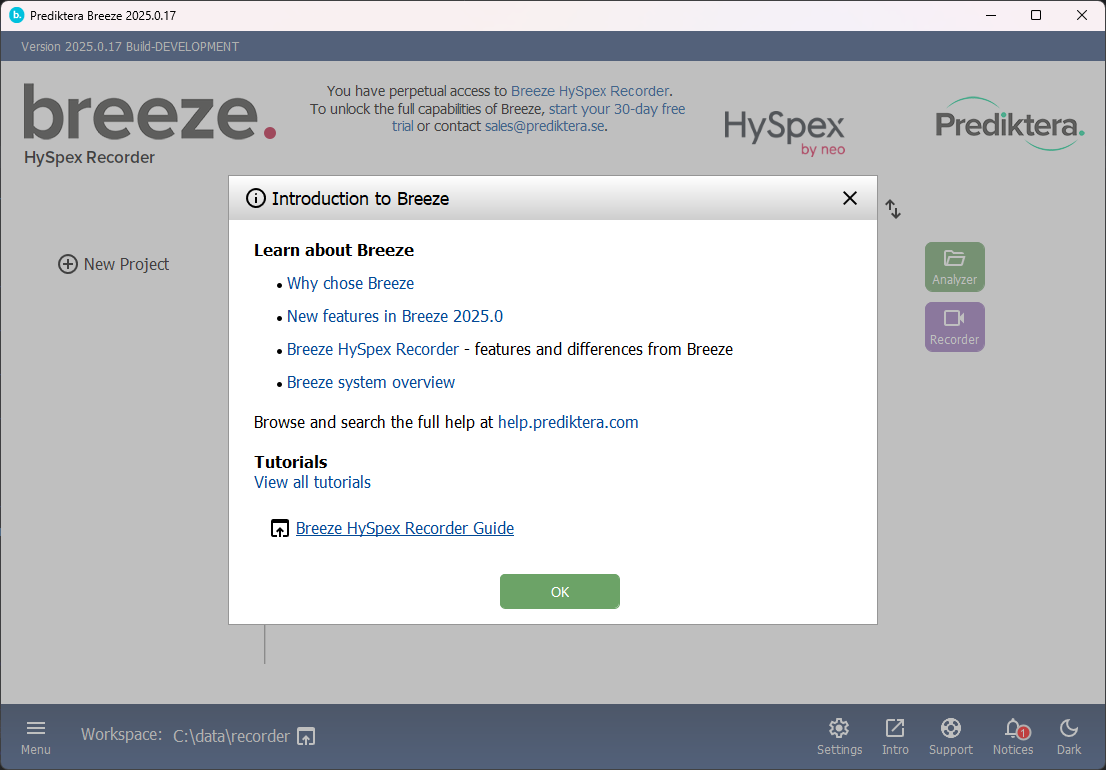
Breeze HySpex Recorder contains the core features of Breeze for recording and storing data. Most of the news listed in these release notes apply to HySpex Recorder too, with the exception of the Data Analysis tools, and the optional modules.
New bundled application: Prediktera Spectral Viewer
Spectral Viewer enables quick viewing of very large images, because data is not loaded into memory until needed. Key features include full-resolution pseudo-RGB display, viewing data in reflectance, absorbance and radiances modes, interactive pixel and area-based spectral analysis, pretreatments. Create sub samples by clicking and dragging and compare the spectra. Add sub samples to the Breeze Table for further analysis.
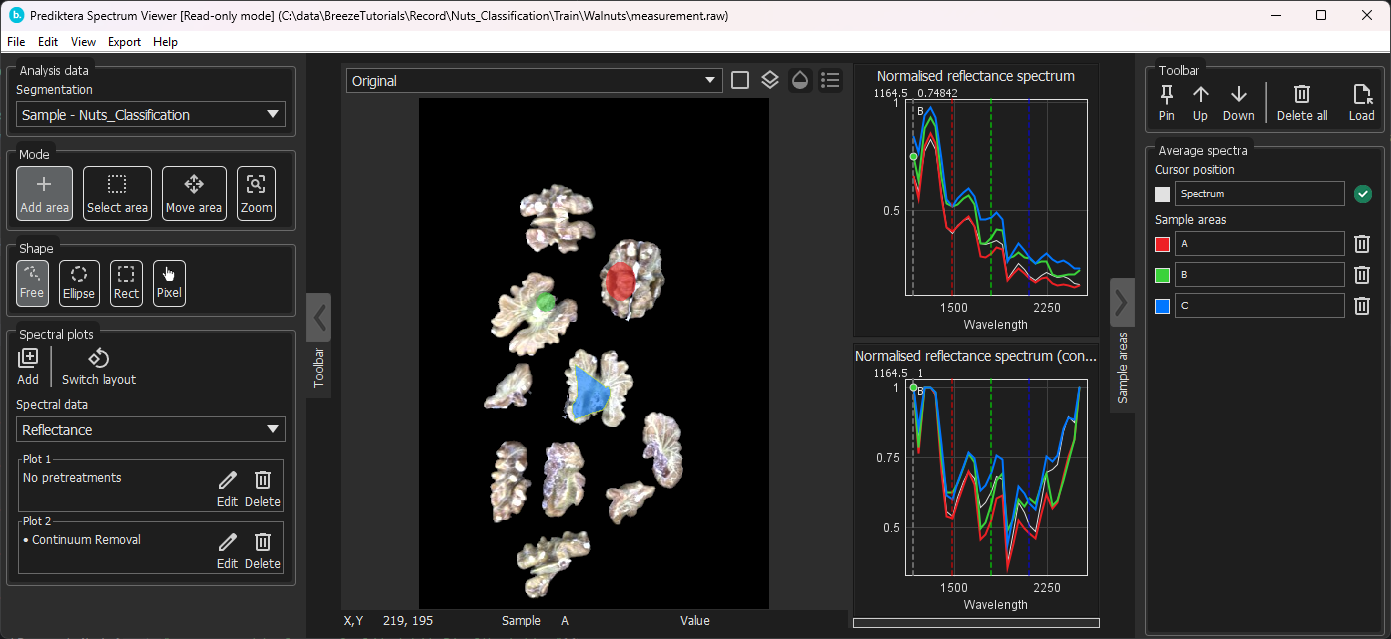
Spectral Viewer is available as a stand-alone program available on Windows Start. Using this app you can quickly open any supported file directly from disk without having to add it to a project in Breeze. You can enable image editing to rotate or crop the image or to modify the references used. Export the results as radiance, reflectance or absorbance.
You can associate Spectral Viewer with file extensions in Windows to automatically start Spectral Viewer when you double-click support file types.
Spectral Viewer is also available in its own tab in Breeze when viewing a measurement. It contains most of the functionality of the Pixel Explore pane but is much quicker to use for larger data.
Learn more in Spectral Viewer

Record - Breeze common features
This section is about the core functionality of Breeze for data acquisition and data management.
🚀 Performance improvements impacting many areas of the Breeze experience, including quicker loading of projects on the main screen.
We have changed how Breeze is licensed. There is now a single licensed Breeze product, with optional modules with added data analysis features. If you have purchased the previous Breeze Geo product, you are automatically transitioned to a Breeze license with the Geological analysis and Core scanning modules. Learn more about this in Licensing. You’ll find new features in these modules at the end of this page.
Improved Breeze and Breeze Runtime logging: tuned logging levels, reduced duplicated logging that quickly make log files larger.
A Breeze workflow.xml file now contains the Breeze version to simplify troubleshooting.
File > Export log files has been extended to not just include the log files, but also the current workspace settings and license information for a more streamlined support experience. Breeze log files and troubleshooting
Updated third party hardware drivers and software, including .NET 9 and Java 25. Bundled Python has been updated to 3.11, the latest version supported by one of the libraries currently used.
Discontinued the macOS builds of Breeze. Breeze is available on Windows and Linux.
Import image files
Crop can now be used to split an image using a grid at import to be able to manage large images in Breeze by splitting them into sub images. Existing images can also be split in the same way. Learn more in Importing data and Crop image. Also added Zoom and pan when cropping. Cropped measurements are are automatically named {measurement name}_crop.
When importing an image, the small thumbnail preview now uses dark and white references, if they exist, to create a reflectance image that has better quality than the raw visualization used before.
Improved user interface for merge and merge settings. Merging images
Fixed: Cannot import iPhone 15 JPG: fails with MergeException. UT-286.
Fixed: PAM file import doesn't work with \r\n line delimiters in the text header. UT-2907.
Settings
Test Scan in Settings now uses the same visualizations as Recorder, and no longer unnecessarily loads the whole test scan into memory. The Spectral Viewer button in Test Scan opens the image in Spectral Viewer for inspection.
Improved user interface for using multiple cameras where the settings are now found at the bottom of each camera settings page, when there is more than one camera configured, instead of always on the second camera like before. Using multiple cameras.
Auto alignment of settings for multiple cameras: Breeze automatically sets the frame rate for other cameras based on changes you make on one camera. If you don’t want this behavior, you can disable this using the ‘Disable auto alignment of settings when more than one camera is used’.
Spinner Control for Frame Averaging: Added up/down buttons for easier adjustment of frame averaging.
Data acquisition - Recorder
This section is about the Recorder guide in Breeze where you do image acquisition from camera.
You can now add a comment or note for a measurement when recording. Breeze retains the measurement name even after deletion.
Open Spectral Viewer to quickly preview a recorded measurement from inside Recorder.
Recorder can now visualize data streams independently when multiple cameras and the Separate files mode is used. Previously the same visualization was always used for all cameras.
Show Camera Id column in Recorder and Breeze client when there are multiple cameras with the Separate files mode, to make it easy to know in which Analysis Tree branch an object was found.
Fixed: Recorder's Table in Continuous mode with 'Save measurements' selected incorrectly shows Measurement name instead of classification. UT-2876.
Fixed: Identified objects in Recorder disappear real-time prediction mode. UT-2864.
Data quality improvements: reference handling
References are key to good data quality and data analysis. In this release substantial improvements have been made. Full help for the below improvements are available in Dark and White References.
White reference quality verification
Breeze now verifies the quality of the white reference as it is taken, imported or extracted from a larger image. If there are issues you are prompted to correct them before continuing. When viewing references in Settings or for a measurement, the black- and white references are now visualized using the same saturation scale (blue to red) used in Test Scan. Saturated pixels are white, and zero pixels are black. Moved settings for references from General to the References page.
Other changes for references
Import references from files of all supported file formats in Breeze.
Extract and use a white reference from a cropped part of an image (for example when white reference was recorded in the same images as the measurement) with zoom and pan to make it easy to select the right pixels.
Configure the use of cached references in Recorder and Settings to use the same references for a longer session of data acquisition.
Store References as Averages: Apply averaging to existing references and store as average values. See Reference averaging.
Update Dark Reference from Test Scan.
Set Dark Reference scan length in settings.
You can now selectively clear dark or white reference in Settings > References.
Fixed problem with open shutter when aborting while taking a dark reference.
Fixed: Recorder incorrectly uses stored white reference when time expired, instead of taking new reference. UT-2885.
Fixed: Test Scan did not correctly show saturated pixels in RGB.
Improved data quality by using white reference intensity
We have changed how white and dark references are used to calculate Reflectance to improve measurement quality. The Breeze Runtime now always stores the white reference intensity (the white reference with its dark reference subtracted) and uses it and the dark reference of the image measurement to calculate Reflectance. This improves measurement quality when the white reference has another dark reference than the image itself and is also useful for real-time measurements when capturing a dark reference is quick while taking a new white reference requires manual work and an interrupted process.
Note that the white reference that is saved in a measurement’s folder by Breeze is, like before 2025.1, stored as raw signal values without the dark reference subtracted.
This method was available in Breeze 2024.2 too but controlled by an option ‘Use White Reference Intensity’ which was turned off by default. This option has been removed from Breeze.
Learn more in Spectral imaging
Hardware
Added support for Qtechnology hyperspectral cameras.
Added capabilities for streaming data from a generic camera setup. Prediktera Data Server
HySpex hardware specific:
-
Switch between HySpex camera lenses in Recorder without going into settings, and without disconnecting and reconnecting the camera.
-
Included cooling information when connecting to a HySpex camera.
-
Support for master / slave configurations of cameras
-
Interpolation with dark reference before and after recording
-
Field Scanner improvements
-
When no white reference is available, the responsivity (RE) matrix in the HySpex binary header is used to improve the thumbnail visualization
-
Breeze now writes additional binary header fields to HySpex images for improved traceability and compatibility with different software by NEO.
-
Radiance Data Export for HySpex: Now supports exporting in radiance format for HySpex systems.
-
Fixed: The HySpex relative responsivity RE matrix is now applied to data to generate less noisy images in Recorder, the References tab, and for the Saturated pixels descriptor in the analysis tree. UT-2568.
-
Fixed: .hyspex white reference binary header has incorrect size which crashes HySpex Rad software.
-
Fixed: Bad pixel correction is now applied when importing white references in HySpex format. UT-2911.
Added support for the Sony ICLE-7RM5 RGB camera. Sony.
Support for Zebra DS3678 bar code scanners to scan bar code or QR codes and automatically use it as measurements name. Core box measurement name template
Updated IDS camera drivers.
No longer take white references for IDS and RGB cameras since they always use the maximum signal (255) for each channel. Note: references are taken for RGB-cameras when more than one camera is used at the same time, because in this scenario the references are needed if data is to be merged and treated as reflectance.
Renamed 'Generic camera' to Specim FX50
Updated the SDK used for HAIP cameras and renamed a setting field Camera IP. HAIP Solutions

Analyze
Improvements for data analysis in Breeze.
Quicker Apply Changes for workflows
The Apply changes button now re-uses saved pixel-prediction data to speed up applying changes in the workflow to images in the project. This works by Breeze keeping track of when descriptors are changed in the Analysis Tree and when they last were recomputed for each image. If nothing has changed for a descriptor, pixel-predictions are not recomputed which saves time and resources.
When you make changes to Analysis Tree descriptors, models or the images themselves, Breeze will recompute the affected prediction data for the images. Note that Breeze always recomputes object segmentations when you click Apply Changes, and that this is not directly sped up by this change.
If you still want to recompute everything, you can use hold down Ctrl+Shift when clicking the Apply Changes button. For details, see help.
Automated workflows and applications
Performance improvement to handle larger data: memory efficient read of prediction results for thumbnail rendering.
Added a workspace setting for the minimum number of hyperspectral bands to require before Histogram normalization for RGB visualization is used when visualizing data as three channel RGB. When using a camera with few bands such as an RGB camera, or a multi-spectral camera with few bands, Breeze cannot use histograms to “borrow data” from neighboring bands to smooth out visualizations in Breeze, because this functionality is only relevant when neighboring bands are closely related
Added a zoom toolbar in the analysis tree and improved handling of branches in tables and exports.
Data analysis and modeling
Model wizard improvements:
-
Label and color on model wizard,
-
select by value in model wizard
-
Added card-style selection for easier new model creation.
-
Cross-validation by category and sequential group
Confidence Output for ML Models: Introduced the option to output confidence levels in machine learning models, providing better transparency in model predictions.
Hierarchical ML Models: Added support for creating and managing hierarchical machine learning models.
Segment Order and Labels in Model Wizard: Improved the model wizard with ordered segmenting samples, label customization, and selection by value.
Cross-Validation Options: Added cross-validation capabilities by category and sequential grouping. See Cross-validation
Import models from Evince.
Training with External Python Libraries: Enabled training with neural networks (ANN) and support vector machines (SVM) using external Python. See Training ONNX model using external python script file
Segmentation and descriptors
If you use descriptors in the Analysis Tree that use specific wavelengths (for example Band Math or Vegetation index), Breeze now verifies that the desired wavelengths exist in the measurement or camera when the workflow is applied to prevent performing analyses with the wrong spectral data. A new Workspace setting has been added, Spectral wavelength matching tolerance, defaulting to 50, that specifies the maximum difference for a wavelength to be considered matching. Learn more in Wavelength matching.
Camera segmentation to split data from multiple cameras into branches in the workflow. Camera (segmentation)
Improved performance when using Grid and insets segmentation for large data.
User-defined grouping of spectra for Spectral Angle Mapper (SAM) Spectral angle mapper (SAM) guide.
Spectral Angle Mapper (SAM) now has an option to decide which rule images/fit value images to display in the Breeze Table.
Added Ternary RGB descriptor - combine three classifications to a single RGB image.
The Combined RGB image descriptor now works in real-time in Breeze Runtime, and the output of the descriptor is written to the measurement_prediction output file.
Introduced mass center-based rectangle segmentation for enhanced precision.
Expression ranges: Average over a range of bands can be expressed as w900:w1200 which expands into (w900 + .... + w1200)/N Operators and parameters in expressions
Enhanced Model Expression Segmentation: Improved segmentation visualization by excluding holes from model expressions.
Pseudo Reflectance Conversion: Added new features for converting data to pseudo reflectance.
Import of end members spectrum for Spectral Angle Mapper (SAM). Spectral angle mapper (SAM) guide.
Improved Integration with Python: Enhanced compatibility and workflows for users integrating Python scripts into Breeze. Python script (descriptor) Python script (segmentation)
The RGB image segmentation method Segment Anything now supports pretrained YOLOv8 and YOLOv11 and FastSAM models for instance segmentation (identifying the pixel-mask outline of objects). Added a parameter to make it possible to specify the Activation function for scores.
Added optional Runtime logging for ONNX segmentation that can turned on in Runtime Workspace Settings.
Fixed: ONNX YOLO5 model fails to identify objects. UT-2830.
Fixed: The Dominant class and Pixel by given class descriptors give incorrect results for USGS PRISM MICA groups. UT-2936. UT-2937.
Fixed: Grid insets makes descriptors and segmentations disappear for large data. UT-2864.
Fixed: Pseudo-RGB shows black image. UT-2871.
Visualization
Spectral plots in the modelling wizard, select end members plot, and Spectral Viewer now uses the true wavelengths on the x-axis for a more accurate visualization of the spectral data.
Advanced Plot Handling: The explore plot can now be saved or copied, including the displayed legend.
More Plot Options in Pixel Explore: Added new plotting features to improve data visualization.
Legend Auto Adjustment: Automatic adjustment of property legends for enhanced data representation.
Fixed the issue with copying columns in tables using right-click.
Export
Export of data from Breeze now displays a confirmation message before overwriting files, instead of silently overwriting previously exported data.
Export improvement to simplify exporting many objects: added an option Create folder for each object that can be unchecked if you want all exports to be put in the export folder, instead of creating a new folder for each. Exporting data.
Export predicted UAV as images: Added options targeted at UAV images of geography to simplify exporting predicted output data from Breeze and using it as overlays in QGIS and other GIS software. Export predicted data
-
Keep original size (zero values for pixels outside object)
-
Merge all samples into one image. This is useful to avoid saving many separate files when it instead makes sense combining them into one image. For example when the original image was segmented using a grid.
-
When segmented images are cropped (without the Keep original size option), Breeze recalculates the Geo-coordinates for each image containing an object. Note that these will only be correct if the original measurement is essentially a map (image captured orthogonally to the ground).
-
A new option Open file in QGIS after export automatically starts QGIS and opens all exported images at the same time which is useful for example when grid and inset segmentation has been used to subdivide a large images into smaller parts.
Export pixel prediction data: You can now select a single property to export data for. Better file and folder names that use descriptor names from the workflow. Export predicted data
Export to CSV text file: select more than one segmentation and export a single large table with data from all levels of the analysis tree. This file can be imported into spreadsheet software like Excel and specifically for geological data, the geochemistry software ioGAS.
The Open in context menu for groups and measurements in Breeze now can be used to open the selected data in Prediktera’s software Evince or in QGIS for further editing.
Export ENVI classification image as BSQ and with band names.
An exported copy of a Breeze project now includes the necessary libraries used by data analysis methods such as USGS PRISM MICA which makes it easier to use the project on another PC without manually restoring supporting files.
New example data and tutorials
Spectral Angle Mapper Classification - Peru Mineral Mosaic SAM Classification
Remote Sensing Shapefile Classification - Field Shapefile Classification
Updated example code Training ONNX model using external python script file.

Optional module: Geological analysis
User-defined grouping of individual minerals for the mineral classification algorithm USGS PRISM MICA for easier interpretation of data. USGS PRISM MICA.
USGS PRISM MICA now has an option to decide which rule images/fit value images to display in the Breeze Table.

Optional module: Core scanning
Depth Segmentation for drill cores: Added the option for core, rubble, and loss-based depth segmentation. See Depth registration (segmentation)
Drill Core Logging and Classification tutorial - Breeze core logging and classification of the drill core

Optional module: Runtime API - real-time integration with external systems
Improved the user-interface for Runtime Settings and Export to Runtime.
Renamed Breeze Client to Breeze Runtime Client to signify that this is an app designed to work with the Runtime, mainly for visualization of an executing real-time workflow. Breeze Runtime Client.
Breeze Runtime Client can now visualize multiple cameras. Each camera gets its own data stream visualization.
The Runtime API’s CaptureOnPredict command has been extended to optionally tell the Runtime to save output prediction data from the analysis tree and thumbnails, in addition to the RAW hyperspectral data available before. Learn more in Developers reference guide
The Combined RGB image descriptor now works in real-time in Breeze Runtime.
Runtime provides data to visualize saturated pixels colored red in RGB mode.
Fixed: Breeze Runtime Client data stream visualization now handles the Blend background property correctly.
Fixed: Runtime reports Stream Type 2 (Pixel Prediction Lines) even if RGB mode is used. UT-2874.
Fixed: Breeze Client correctly displays Blend background
Runtime code example for applying a workflow to a set of files on disk. Python Apply Changes example
Improved help for development of third-party solutions using the Runtime in Introduction to Breeze Runtime development and related help pages.